<?xml version="1.0" encoding="utf-8"?><feed xmlns="http://www.w3.org/2005/Atom" ><generator uri="https://jekyllrb.com/" version="4.4.1">Jekyll</generator><link href="https://terryjwyoon.github.io/feed.xml" rel="self" type="application/atom+xml" /><link href="https://terryjwyoon.github.io/" rel="alternate" type="text/html" /><updated>2026-04-18T08:13:30+09:00</updated><id>https://terryjwyoon.github.io/feed.xml</id><title type="html">Poin Lab</title><subtitle></subtitle><author><name>Terry Yoon</name><email>terryjwyoon@gmail.com</email></author><entry><title type="html">[Electronics] 배터리 단위 정리: A, Ah, Wh</title><link href="https://terryjwyoon.github.io/electronics/battery_unit/" rel="alternate" type="text/html" title="[Electronics] 배터리 단위 정리: A, Ah, Wh" /><published>2026-04-12T00:00:00+09:00</published><updated>2026-04-12T00:00:00+09:00</updated><id>https://terryjwyoon.github.io/electronics/battery_unit</id><content type="html" xml:base="https://terryjwyoon.github.io/electronics/battery_unit/"><![CDATA[<p>배터리 단위가 헷갈려서 정리해보고자 한다.</p>

<hr />

<h2 id="1️⃣-a-암페어-전류--물의-흐름-속도">1️⃣ A (암페어, 전류) — “물의 흐름 속도”</h2>

<p><strong>A(암페어)</strong>는 전기가 “얼마나 빠르게 흐르느냐”를 나타내는 단위다.</p>

<ul>
  <li><strong>정의:</strong> 1초 동안 전선(파이프)을 통해 흐르는 전하(전자)의 양</li>
  <li><strong>비유:</strong> 수도꼭지에서 나오는 물의 흐름 세기(속도)</li>
</ul>

<table>
  <thead>
    <tr>
      <th>전류</th>
      <th>비유</th>
    </tr>
  </thead>
  <tbody>
    <tr>
      <td>1A</td>
      <td>초당 1리터의 물이 흐름</td>
    </tr>
    <tr>
      <td>2A</td>
      <td>초당 2리터의 물이 흐름 → 더 강한 전류</td>
    </tr>
    <tr>
      <td>0.5A</td>
      <td>초당 0.5리터 → 약한 전류</td>
    </tr>
  </tbody>
</table>

<blockquote>
  <p>💡 <strong>실생활 예시</strong></p>
  <ul>
    <li>USB 충전기 (일반형): 1A</li>
    <li>스마트폰 고속 충전기: 2~3A</li>
    <li>전기차 급속 충전: 수십~수백 A</li>
  </ul>
</blockquote>

<hr />

<h2 id="2️⃣-ah-암페어시-전하량--물탱크의-총-물의-양">2️⃣ Ah (암페어시, 전하량) — “물탱크의 총 물의 양”</h2>

<p>Ah(암페어시)는 배터리에 <em>얼마나 많은 전기가 저장되어 있는지</em>를 나타내는 단위다.</p>

<ul>
  <li><strong>정의:</strong> 1A의 전류를 1시간 동안 흘릴 수 있는 전기의 총량</li>
  <li><strong>계산식:</strong> <code class="language-plaintext highlighter-rouge">Ah = A × 시간(h)</code></li>
  <li><strong>참고:</strong> <code class="language-plaintext highlighter-rouge">1Ah = 1,000mAh</code> (스마트폰 배터리 표기에 주로 사용)</li>
  <li><strong>비유:</strong> 물탱크 안에 들어 있는 물의 전체 양</li>
</ul>

<table>
  <thead>
    <tr>
      <th>용량</th>
      <th>의미</th>
    </tr>
  </thead>
  <tbody>
    <tr>
      <td>1Ah</td>
      <td>1A 전류를 <strong>1시간</strong> 동안 공급 가능</td>
    </tr>
    <tr>
      <td>2Ah</td>
      <td>1A 전류를 <strong>2시간</strong>, 또는 2A 전류를 <strong>1시간</strong> 공급 가능</td>
    </tr>
    <tr>
      <td>10Ah</td>
      <td>1A 전류를 <strong>10시간</strong>, 또는 2A 전류를 <strong>5시간</strong> 공급 가능</td>
    </tr>
  </tbody>
</table>

<blockquote>
  <p>💡 <strong>생활 예시</strong></p>
  <ul>
    <li>스마트폰 배터리: <strong>5,000mAh = 5Ah</strong> → 하루 종일 사용 가능</li>
    <li>보조 배터리 (대용량): <strong>20,000mAh = 20Ah</strong></li>
    <li>전동 킥보드 배터리: <strong>약 7~10Ah</strong></li>
    <li>자동차 납축 배터리: <strong>45~100Ah</strong></li>
  </ul>
</blockquote>

<p>👉 <strong>Ah가 크면 클수록 오래 사용할 수 있는 배터리</strong>이다. 단, Ah만으로는 실제 에너지를 비교할 수 없음. 전압(V)이 다르면 이야기가 달라지기 때문.</p>

<hr />

<h2 id="3️⃣-wh-와트시-에너지--물의-위치-에너지">3️⃣ Wh (와트시, 에너지) — “물의 위치 에너지”</h2>

<p>Wh(와트시)는 배터리가 <em>실제로 얼마나 일을 할 수 있는지</em>를 나타내는 에너지 단위다.</p>

<p>먼저 <strong>W(와트, 전력)</strong> 를 이해해야 한다. 전력은 전압과 전류의 곱으로, 전기가 <em>지금 이 순간 얼마나 빠르게 에너지를 사용하는지</em>를 나타낸다.</p>

<div class="language-plaintext highlighter-rouge"><div class="highlight"><pre class="highlight"><code>W = V × A
</code></pre></div></div>

<ul>
  <li><strong>정의:</strong> 1W의 전력을 1시간 동안 공급할 수 있는 에너지의 양</li>
  <li><strong>계산식:</strong> <code class="language-plaintext highlighter-rouge">Wh = W × 시간(h)</code> = <code class="language-plaintext highlighter-rouge">Ah × V(전압)</code></li>
  <li><strong>비유:</strong> 물의 양(Ah) × 물탱크의 높이(V) = 실제로 일할 수 있는 위치 에너지</li>
</ul>

<p>같은 양의 물이라도 <strong>높은 곳</strong>에서 떨어질수록 더 큰 에너지를 낸다. 마찬가지로, 같은 Ah라도 전압이 높을수록 더 많은 에너지를 저장한 배터리다.</p>

<blockquote>
  <p>💡 <strong>생활 예시</strong></p>
  <ul>
    <li>스마트폰 배터리: 5Ah × 3.7V ≈ <strong>18.5Wh</strong></li>
    <li>노트북 배터리: 약 <strong>50~100Wh</strong></li>
    <li>항공기 기내 반입 제한: <strong>100Wh 이하</strong> (리튬 배터리 기준)</li>
    <li>전기차 배터리: <strong>40~100kWh</strong> (킬로와트시)</li>
  </ul>
</blockquote>

<hr />

<h2 id="4️⃣-종합-예시">4️⃣ 종합 예시</h2>

<h3 id="-예시-1-12v-10ah-배터리-자동차-보조-배터리-ups-등">📦 예시 1: 12V 10Ah 배터리 (자동차 보조 배터리, UPS 등)</h3>

<div class="language-plaintext highlighter-rouge"><div class="highlight"><pre class="highlight"><code>Wh = 12V × 10Ah = 120Wh
</code></pre></div></div>

<ul>
  <li>12V 1A 부하(예: LED 조명) → <strong>10시간</strong> 사용 가능</li>
  <li>12V 2A 부하(예: 소형 팬) → <strong>5시간</strong> 사용 가능</li>
  <li>12V 10A 부하(예: 소형 인버터) → <strong>1시간</strong> 사용 가능</li>
</ul>

<h3 id="-예시-2-37v-5000mah-스마트폰-배터리">📦 예시 2: 3.7V 5,000mAh 스마트폰 배터리</h3>

<div class="language-plaintext highlighter-rouge"><div class="highlight"><pre class="highlight"><code>Wh = 3.7V × 5Ah = 18.5Wh
</code></pre></div></div>

<ul>
  <li>약 5W 소비(화면 켜고 유튜브 시청) → <strong>약 3.7시간</strong> 사용 가능</li>
</ul>

<h3 id="-예시-3-ah가-같아도-wh가-다른-경우">📦 예시 3: Ah가 같아도 Wh가 다른 경우</h3>

<table>
  <thead>
    <tr>
      <th>배터리</th>
      <th>전압</th>
      <th>용량</th>
      <th>에너지</th>
    </tr>
  </thead>
  <tbody>
    <tr>
      <td>A 배터리</td>
      <td>3.7V</td>
      <td>10Ah</td>
      <td><strong>37Wh</strong></td>
    </tr>
    <tr>
      <td>B 배터리</td>
      <td>12V</td>
      <td>10Ah</td>
      <td><strong>120Wh</strong></td>
    </tr>
  </tbody>
</table>

<p>→ Ah는 같지만 전압이 다르면 실제 에너지(Wh)는 3배 이상 차이남.<br />
→ <strong>서로 다른 전압의 배터리를 비교할 때는 반드시 Wh를 사용해야 함.</strong></p>

<hr />

<h2 id="-핵심-정리">📊 핵심 정리</h2>

<table>
  <thead>
    <tr>
      <th>단위</th>
      <th>이름</th>
      <th>의미</th>
      <th>물탱크 비유</th>
    </tr>
  </thead>
  <tbody>
    <tr>
      <td><strong>A</strong></td>
      <td>암페어</td>
      <td>전류 (흐르는 속도)</td>
      <td>수도꼭지에서 나오는 물의 세기</td>
    </tr>
    <tr>
      <td><strong>Ah</strong></td>
      <td>암페어시</td>
      <td>전하량 (저장된 전기량)</td>
      <td>물탱크 안 물의 총량</td>
    </tr>
    <tr>
      <td><strong>V</strong></td>
      <td>볼트</td>
      <td>전압 (전위 차)</td>
      <td>물탱크의 높이</td>
    </tr>
    <tr>
      <td><strong>W</strong></td>
      <td>와트</td>
      <td>전력 = V × A (소비 속도)</td>
      <td>물이 파이프를 통해 흐르는 순간적인 에너지</td>
    </tr>
    <tr>
      <td><strong>Wh</strong></td>
      <td>와트시</td>
      <td>에너지 (실제 일할 수 있는 양)</td>
      <td>물의 총량 × 탱크 높이 (위치 에너지)</td>
    </tr>
  </tbody>
</table>

<div class="language-plaintext highlighter-rouge"><div class="highlight"><pre class="highlight"><code>Wh = Ah × V
</code></pre></div></div>

<blockquote>
  <p>🏁 <strong>한 줄 요약:</strong><br />
Ah는 “얼마나 오래”, V는 “얼마나 강하게”, Wh는 “실제로 얼마나 많은 일을 할 수 있는가”를 나타낸다.</p>
</blockquote>]]></content><author><name>Terry Yoon</name><email>terryjwyoon@gmail.com</email></author><category term="electronics" /><category term="battery" /><category term="electronics" /><summary type="html"><![CDATA[배터리 단위가 헷갈려서 정리해보고자 한다.]]></summary></entry><entry><title type="html">Raspberry Pi CM5 초기 세팅 (eMMC + Ethernet SSH)</title><link href="https://terryjwyoon.github.io/embedded/embedded_linux/Rpi5/" rel="alternate" type="text/html" title="Raspberry Pi CM5 초기 세팅 (eMMC + Ethernet SSH)" /><published>2025-05-24T00:00:00+09:00</published><updated>2025-05-24T00:00:00+09:00</updated><id>https://terryjwyoon.github.io/embedded/embedded_linux/Rpi5</id><content type="html" xml:base="https://terryjwyoon.github.io/embedded/embedded_linux/Rpi5/"><![CDATA[<p>Raspberry Pi CM5 를 처음 부팅하고, eMMC에 OS 설치 후 Windows PC와 Ethernet을 통해 SSH로 접속하기까지의 과정</p>

<h2 id="1-emmc-부트-방지-점퍼-제거">1. eMMC 부트 방지 점퍼 제거</h2>

<ul>
  <li>CM5의 eMMC는 기본적으로 부팅을 방지하기 위해 점퍼로 설정됨</li>
  <li>Raspberry Pi Imager로 OS를 설치한 후에는 점퍼를 제거해야 정상 부팅 및 HDMI 출력이 가능</li>
</ul>

<h2 id="2-rpiboot-설치-및-mass-storage-모드-진입">2. rpiboot 설치 및 Mass Storage 모드 진입</h2>
<p>PC에서 라즈베리파이의 eMMC를 장치로 인식하기 위해 rpiboot를 설치
rpiboot는 라즈베리파이를 PC에서 인식하고 사용할 수 있게 함(일종의 디바이스 드라이버 프로그램)</p>

<ul>
  <li><a href="https://github.com/raspberrypi/usbboot/raw/master/win32/rpiboot_setup.exe"><strong>rpiboot</strong></a> 설치</li>
  <li>CM5를 PC에 USB로 연결한 후, <code class="language-plaintext highlighter-rouge">rpiboot-CM4-CM5 - Mass Storage Gadget</code>을 실행하면 eMMC가 USB Mass Storage 디바이스로 인식됨</li>
</ul>

<h2 id="3-raspberry-pi-os-설치">3. Raspberry Pi OS 설치</h2>

<p>Raspberry Pi OS 64bit 설치</p>

<ul>
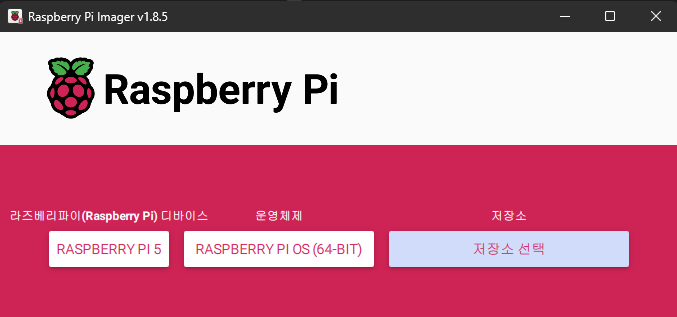
  <li><a href="https://www.raspberrypi.com/software/"><strong>Raspberry Pi Imager</strong></a> 설치 및 실행</li>
  <li><strong>Raspberry Pi OS 64bit</strong> 선택 후 설치</li>
  <li><strong>MMC/BLK0 USB DEVICE</strong> 선택</li>
</ul>

<p><img src="/images/2025-05-24-Rpi5/image-1.png" alt="Raspberry Pi Imager" /></p>

<p>설치가 완료되면 <strong>점퍼를 제거</strong>한 뒤 재부팅하고, HDMI를 통해 화면이 정상 출력되는지 확인</p>

<h2 id="4-ethernet-직접-연결-설정-windows-pc-기준">4. Ethernet 직접 연결 설정 (Windows PC 기준)</h2>

<p>CM5를 <strong>USB-Ethernet 어댑터</strong>를 통해 <strong>Windows PC에 직접 연결</strong></p>

<h3 id="1-제어판에서-ics-설정">1) 제어판에서 ICS 설정</h3>

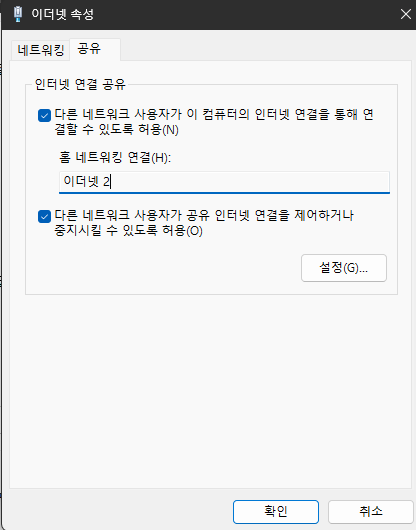
<p>Windows에서 기존 인터넷 연결 어댑터에 대해 <strong>인터넷 연결 공유(ICS)</strong>를 설정 → Ethernet을 통해 라즈베리파이에 네트워크를 전달</p>

<p><img src="/images/2025-05-24-Rpi5/image-2.png" alt="기존 네트워크 어댑터 설정 변경" /></p>

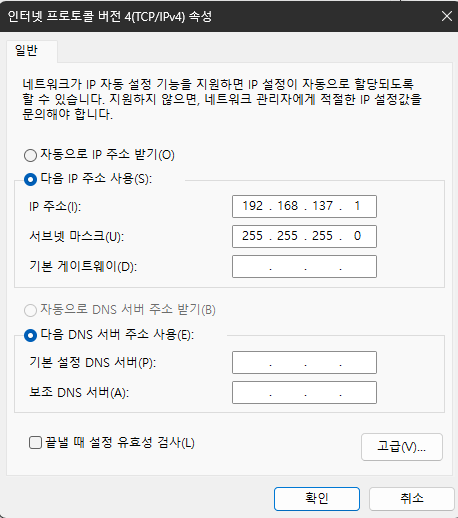
<h3 id="2-raspberry-pi-어댑터-설정">2) Raspberry Pi 어댑터 설정</h3>

<p><img src="/images/2025-05-24-Rpi5/image-3.png" alt="라즈베리파이 네트워크 어댑터 설정 변경" /></p>

<p>라즈베리파이에는 자동으로 <strong>192.168.137.xxx</strong> 대역의 IP가 할당됨</p>

<h2 id="5-ip-확인-및-ssh-접속">5. IP 확인 및 SSH 접속</h2>

<h3 id="ip-확인-툴">IP 확인 툴</h3>

<ul>
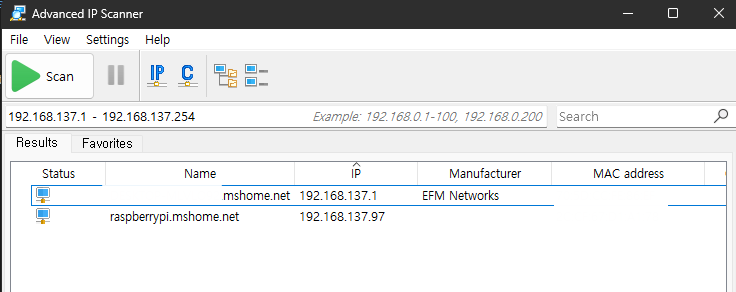
  <li><a href="https://www.advanced-ip-scanner.com/">Advanced IP Scanner</a> 사용 시, 라즈베리파이의 IP를 확인 가능</li>
  <li>또는 <code class="language-plaintext highlighter-rouge">raspberrypi.mshome.net</code>이라는 도메인으로 자동 할당됨</li>
</ul>

<p><img src="/images/2025-05-24-Rpi5/image.png" alt="Advanced IP Scanner" /></p>

<h3 id="ssh-접속-key-인증-기반">SSH 접속 (Key 인증 기반)</h3>

<div class="language-bash highlighter-rouge"><div class="highlight"><pre class="highlight"><code>ssh terry@raspberrypi.mshome.net
</code></pre></div></div>

<p>또는</p>

<div class="language-bash highlighter-rouge"><div class="highlight"><pre class="highlight"><code>ssh pi@192.168.137.xxx
</code></pre></div></div>

<blockquote>
  <p><em>Note: 기본 사용자명은 <code class="language-plaintext highlighter-rouge">pi</code>입니다. 별도로 계정을 만들었다면 그 계정을 사용</em></p>
</blockquote>

<hr />

<h2 id="6-ssh-설정-변경-선택-사항">6. SSH 설정 변경 (선택 사항)</h2>

<p>SSH 설정을 직접 편집하려면 다음 명령을 수행:</p>

<div class="language-bash highlighter-rouge"><div class="highlight"><pre class="highlight"><code><span class="nb">sudo </span>apt-get update
<span class="nb">sudo </span>apt-get <span class="nb">install </span>vim
<span class="nb">sudo </span>vim /etc/ssh/sshd_config
<span class="nb">sudo </span>systemctl restart ssh
</code></pre></div></div>

<p>필요한 설정:</p>

<ul>
  <li><code class="language-plaintext highlighter-rouge">PermitRootLogin no</code></li>
  <li><code class="language-plaintext highlighter-rouge">PasswordAuthentication no</code> (Key 인증만 사용 시)</li>
</ul>]]></content><author><name>Terry Yoon</name><email>terryjwyoon@gmail.com</email></author><category term="embedded" /><category term="embedded_linux" /><category term="linux" /><category term="EmbeddedLinux" /><category term="raspberrypi" /><category term="cm5" /><category term="ssh" /><summary type="html"><![CDATA[Raspberry Pi CM5 를 처음 부팅하고, eMMC에 OS 설치 후 Windows PC와 Ethernet을 통해 SSH로 접속하기까지의 과정]]></summary></entry><entry><title type="html">[Docker] STM32 Build Container Distribution</title><link href="https://terryjwyoon.github.io/docker/docker_distribute/" rel="alternate" type="text/html" title="[Docker] STM32 Build Container Distribution" /><published>2025-04-13T00:00:00+09:00</published><updated>2025-04-13T00:00:00+09:00</updated><id>https://terryjwyoon.github.io/docker/docker_distribute</id><content type="html" xml:base="https://terryjwyoon.github.io/docker/docker_distribute/"><![CDATA[<blockquote>
  <p>A practical guide for using a prebuilt Docker container to build STM32 firmware on Windows with VSCode and Docker.</p>
</blockquote>

<h2 id="-1-install-docker-on-windows">🐳 1. Install Docker on Windows</h2>

<ul>
  <li>Download Docker Desktop:<br />
<a href="https://docs.docker.com/get-started/get-docker/">Get Docker for Windows</a></li>
  <li>Optional Korean blog reference:<br />
<a href="https://herojoon-dev.tistory.com/254">Blog Guide (Korean)</a></li>
  <li><strong>Restart your PC</strong> after installation.</li>
</ul>

<h2 id="-2-load-the-prebuilt-stm32-image">📦 2. Load the Prebuilt STM32 Image</h2>

<p>Download and import the prebuilt image (provided as <code class="language-plaintext highlighter-rouge">.tar</code>):</p>

<div class="language-bash highlighter-rouge"><div class="highlight"><pre class="highlight"><code>docker load <span class="nt">-i</span> ty_stm32_v0.0.1.tar
</code></pre></div></div>

<h2 id="-3-run-the-stm32-build-container">🚀 3. Run the STM32 Build Container</h2>

<div class="language-bash highlighter-rouge"><div class="highlight"><pre class="highlight"><code>docker run <span class="nt">-it</span> <span class="nt">--rm</span> ty_stm32 /bin/bash
</code></pre></div></div>

<p>If you’d like to keep the container running in background (for attaching from VSCode), remove <code class="language-plaintext highlighter-rouge">--rm</code>:</p>

<div class="language-bash highlighter-rouge"><div class="highlight"><pre class="highlight"><code>docker run <span class="nt">-it</span> <span class="nt">--name</span> ty_stm32 ty_stm32 /bin/bash
</code></pre></div></div>

<h2 id="-4-set-up-vscode-for-docker-based-development">🧠 4. Set Up VSCode for Docker-Based Development</h2>

<h3 id="-install-extensions">🧹 Install Extensions</h3>

<ul>
  <li><strong>Remote Development</strong> (<code class="language-plaintext highlighter-rouge">ms-vscode-remote.vscode-remote-extensionpack</code>)</li>
  <li><strong>Tasks Explorer</strong> (<code class="language-plaintext highlighter-rouge">spmeesseman.vscode-taskexplorer</code>)</li>
</ul>

<h3 id="-attach-vscode-to-running-container">🔗 Attach VSCode to Running Container</h3>

<ul>
  <li>From VSCode Command Palette (<code class="language-plaintext highlighter-rouge">Ctrl + Shift + P</code>):
    <div class="language-plaintext highlighter-rouge"><div class="highlight"><pre class="highlight"><code>Dev Containers: Attach to Running Container...
</code></pre></div>    </div>
  </li>
  <li>Select your running container (e.g., <code class="language-plaintext highlighter-rouge">ty_stm32_container</code>)</li>
</ul>

<h2 id="-5-configure-ssh-for-github-access-inside-container">🔐 5. Configure SSH for GitHub Access (inside container)</h2>

<p>Inside the container terminal:</p>

<div class="language-bash highlighter-rouge"><div class="highlight"><pre class="highlight"><code>ssh-keygen <span class="nt">-t</span> ed25519
<span class="nb">cat</span> ~/.ssh/id_ed25519.pub
</code></pre></div></div>

<p>Copy the printed key and add it to your GitHub account:<br />
<a href="https://github.com/settings/keys">GitHub → Settings → SSH and GPG Keys</a></p>

<p>(Optional: Add SSH config for convenience)</p>

<div class="language-bash highlighter-rouge"><div class="highlight"><pre class="highlight"><code>vim ~/.ssh/config
</code></pre></div></div>

<p>Example content:</p>

<div class="language-plaintext highlighter-rouge"><div class="highlight"><pre class="highlight"><code>Host github.com
  User git
  IdentityFile ~/.ssh/id_ed25519
</code></pre></div></div>

<p>Now you can clone private repositories:</p>

<div class="language-bash highlighter-rouge"><div class="highlight"><pre class="highlight"><code>git clone git@github.com:&lt;your-username&gt;/&lt;your-repo&gt;.git
</code></pre></div></div>

<h2 id="️-6-build-firmware-from-vscode">⚙️ 6. Build Firmware from VSCode</h2>

<ul>
  <li>Open the firmware project directory</li>
  <li>Use <strong>Tasks Explorer</strong> (<code class="language-plaintext highlighter-rouge">Ctrl + Shift + P</code> → <code class="language-plaintext highlighter-rouge">Tasks: Run Task</code>)</li>
  <li>Run the appropriate build task (e.g., <code class="language-plaintext highlighter-rouge">Build Firmware</code>)</li>
</ul>

<h2 id="-7-retrieve-build-artifacts-eg-uf2">📥 7. Retrieve Build Artifacts (e.g., .uf2)</h2>

<p>Use the provided <code class="language-plaintext highlighter-rouge">pull_uf2.bat</code> script to copy build results from the container to your Windows host:</p>

<div class="language-batch highlighter-rouge"><div class="highlight"><pre class="highlight"><code>@echo <span class="na">off</span>
<span class="kd">set</span> <span class="kd">CONTAINER</span><span class="o">=</span><span class="kd">ty_stm32_keyboard</span>
<span class="kd">set</span> <span class="kd">REMOTE_PATH</span><span class="o">=</span><span class="na">/root/TY/keyboard-h</span><span class="m">7</span><span class="kd">s</span><span class="na">/firmware/baram</span><span class="o">-</span><span class="m">45</span><span class="kd">k</span><span class="na">-h</span><span class="m">7</span><span class="kd">s</span><span class="na">-fw/build
</span><span class="kd">set</span> <span class="kd">LOCAL_PATH</span><span class="o">=</span><span class="vm">%~dp0</span><span class="kd">output</span>

<span class="nb">mkdir</span> <span class="nv">%LOCAL_PATH%</span>
<span class="kd">docker</span> <span class="kd">cp</span> <span class="nv">%CONTAINER%</span>:<span class="nv">%REMOTE_PATH%</span> <span class="nv">%LOCAL_PATH%</span>
<span class="nb">start</span> <span class="s2">""</span> <span class="nv">%LOCAL_PATH%</span>\build
<span class="nb">pause</span>
</code></pre></div></div>

<p>Place this script next to your working folder and run after each build.</p>

<h2 id="-8-flash-and-debug-locally">🔌 8. Flash and Debug Locally</h2>

<p>Use <a href="https://www.st.com/en/development-tools/stm32cubeprog.html">STM32CubeProgrammer</a> on Windows:</p>

<div class="language-bash highlighter-rouge"><div class="highlight"><pre class="highlight"><code>STM32_Programmer_CLI.exe ^
  <span class="nt">-c</span> <span class="nv">port</span><span class="o">=</span>SWD <span class="nv">reset</span><span class="o">=</span>HWrst <span class="nv">freq</span><span class="o">=</span>4000 ^
  <span class="nt">-w</span> .<span class="se">\b</span>aram-qmk-8k-boot.elf <span class="nt">-v</span> <span class="nt">-g</span>
</code></pre></div></div>

<p>Make sure the board is connected via ST-Link and in boot mode if needed.</p>]]></content><author><name>Terry Yoon</name><email>terryjwyoon@gmail.com</email></author><category term="docker" /><category term="docker" /><category term="stm32" /><category term="embedded" /><summary type="html"><![CDATA[A practical guide for using a prebuilt Docker container to build STM32 firmware on Windows with VSCode and Docker.]]></summary></entry><entry><title type="html">[Linux System] 임베디드 리눅스 개발 환경 구축</title><link href="https://terryjwyoon.github.io/embedded/embedded_linux/EmbeddedLinux_Dev_Env/" rel="alternate" type="text/html" title="[Linux System] 임베디드 리눅스 개발 환경 구축" /><published>2025-02-24T00:00:00+09:00</published><updated>2025-02-24T00:00:00+09:00</updated><id>https://terryjwyoon.github.io/embedded/embedded_linux/EmbeddedLinux_Dev_Env</id><content type="html" xml:base="https://terryjwyoon.github.io/embedded/embedded_linux/EmbeddedLinux_Dev_Env/"><![CDATA[<h1 id="1-host-system-구축">1. Host System 구축</h1>

<h2 id="virtualbox-host-system">VirtualBox Host System</h2>
<p>Target board 의 로그를 확인하고, Target board 를 build 하기 위한 host system 을 구축한다.</p>

<h3 id="windows---virtualbox-간-파일-공유">Windows - VirtualBox 간 파일 공유</h3>

<p>VirtualBox 설정 &gt; 공유 폴더</p>

<div class="language-bash highlighter-rouge"><div class="highlight"><pre class="highlight"><code><span class="nv">$ </span><span class="nb">sudo cp</span> <span class="nt">-rf</span> /media/sf_share/res <span class="nb">.</span>

<span class="nv">$ </span><span class="nb">sudo chown</span> <span class="nt">-R</span> user res  <span class="c"># 소유자를 user 로 변경</span>
<span class="nv">$ </span><span class="nb">sudo chgrp</span> <span class="nt">-R</span> user res  <span class="c"># 소유 그룹을 user 로 변경</span>

<span class="nv">$ </span><span class="nb">tar </span>zxvf ~/xxx.tar.gz   <span class="c"># 압축 해제</span>

<span class="c"># manual, help</span>
<span class="nv">$ </span>man <span class="nb">cp</span>
<span class="nv">$ </span><span class="nb">help cd</span>
</code></pre></div></div>

<h1 id="2-target-system-구축">2. Target System 구축</h1>

<h2 id="연결-구조">연결 구조</h2>
<p>[Target] - [UART(BCM2837)] - [UART-to-USB Converter] - [USB] - [PC(Host)]
[Target] - [Ethernet] - [PC(Host)]</p>

<h2 id="host-serial-설정">(Host) Serial 설정</h2>
<div class="language-bash highlighter-rouge"><div class="highlight"><pre class="highlight"><code><span class="nv">$ </span><span class="nb">sudo </span>minicom <span class="nt">-s</span>  <span class="c"># serial 설정</span>
<span class="nv">$ </span><span class="nb">sudo </span>minicom     <span class="c"># 실행</span>
</code></pre></div></div>
<h2 id="target-serial-설정">(Target) Serial 설정</h2>
<p>U-Boot 명령 프롬프트 진입 (count가 0이 되기 전에 부트로더 명령 프롬프트 진입)</p>

<h2 id="target-환경변수-설정">(Target) 환경변수 설정</h2>
<div class="language-bash highlighter-rouge"><div class="highlight"><pre class="highlight"><code>U-Boot&gt; <span class="nb">printenv
</span>U-Boot&gt; setenv
U-Boot&gt; saveenv
</code></pre></div></div>

<h2 id="host-network-setting">(Host) Network Setting</h2>
<p>IP, Netmask 설정
192.168.10.3
ifconfig</p>

<h2 id="target-network-setting">(Target) Network Setting</h2>
<p>192.168.10.2</p>

<h2 id="tftp를-이용한-파일-전송">TFTP를 이용한 파일 전송</h2>
<p>Host &gt; Target 으로 이미지 전송</p>
<ol>
  <li>커널 이미지</li>
  <li>DTB 이미지</li>
  <li>RFS 이미지</li>
</ol>

<p>Target 시스템에서 kernel image 들을 특정 주소로 download</p>

<h2 id="target-boot-설정">(Target) boot 설정</h2>
<div class="language-bash highlighter-rouge"><div class="highlight"><pre class="highlight"><code>U-Boot&gt; setenv bootcmd <span class="s1">'~'</span>   <span class="c"># 리눅스 부팅시 수행되는 command</span>
U-Boot&gt; setenv bootargs <span class="s1">'~'</span>  <span class="c"># U-Boot 가 kernel로 전달할 옵션 (kernel parameter)</span>
</code></pre></div></div>
<p>bootargs 에는 RFS 의 정보가 커널로 전달되어야 한다.</p>

<p>부트로더 &gt; 커널 이미지, RFS 이미지 load &gt; 커널 부팅 &gt; RFS mount</p>

<h2 id="host-target-system-용-program-build">(Host) Target system 용 program build</h2>
<p>bashrc 에 cross-compiler 경로 추가
aarch64-linux-gnu-gcc</p>

<h2 id="nfs-사용">NFS 사용</h2>
<p>공유폴더 개념
Host : NFS Server
Target : NFS Client, NFS 공유 directory 를 mount 해야 함</p>]]></content><author><name>Terry Yoon</name><email>terryjwyoon@gmail.com</email></author><category term="embedded" /><category term="embedded_linux" /><category term="linux" /><category term="EmbeddedLinux" /><summary type="html"><![CDATA[1. Host System 구축]]></summary></entry><entry><title type="html">[Linux] screen 사용하기</title><link href="https://terryjwyoon.github.io/linux/screen/" rel="alternate" type="text/html" title="[Linux] screen 사용하기" /><published>2025-02-16T00:00:00+09:00</published><updated>2025-02-16T00:00:00+09:00</updated><id>https://terryjwyoon.github.io/linux/screen</id><content type="html" xml:base="https://terryjwyoon.github.io/linux/screen/"><![CDATA[<div class="language-bash highlighter-rouge"><div class="highlight"><pre class="highlight"><code><span class="nb">sudo </span>apt-get <span class="nb">install </span>screen
vim ~/.screenrc
<span class="nb">source</span> ~/.screenrc
</code></pre></div></div>

<div class="language-bash highlighter-rouge"><div class="highlight"><pre class="highlight"><code>ck 5000
vbell off
defscrollback 10000
termcapinfo xterm<span class="k">*</span> ti@:te@
startup_message off
hardstatus on
hardstatus alwayslastline
hardstatus string <span class="s2">"%{.bW}%-w%{.rW}%n*%t%{-}%+w %= %c </span><span class="k">${</span><span class="nv">USER</span><span class="k">}</span><span class="s2">@%H"</span>
bindkey <span class="nt">-k</span> k1 <span class="k">select </span>0
bindkey <span class="nt">-k</span> k2 <span class="k">select </span>1
bindkey <span class="nt">-k</span> k3 sel
</code></pre></div></div>]]></content><author><name>Terry Yoon</name><email>terryjwyoon@gmail.com</email></author><category term="linux" /><category term="linux" /><summary type="html"><![CDATA[sudo apt-get install screen vim ~/.screenrc source ~/.screenrc]]></summary></entry><entry><title type="html">[DevServer] Ubuntu 부팅디스크 만들기</title><link href="https://terryjwyoon.github.io/linux/devserver_ubuntu/" rel="alternate" type="text/html" title="[DevServer] Ubuntu 부팅디스크 만들기" /><published>2025-01-19T00:00:00+09:00</published><updated>2025-01-19T00:00:00+09:00</updated><id>https://terryjwyoon.github.io/linux/devserver_ubuntu</id><content type="html" xml:base="https://terryjwyoon.github.io/linux/devserver_ubuntu/"><![CDATA[<h2 id="순서">순서</h2>
<ol>
  <li>Ubuntu 22.04.5 LTS desktop download<br />
<a href="https://releases.ubuntu.com/?_ga=2.149898549.2084151835.1707729318-1126754318.1683186906">Ubuntu 22.04.5 LTS (Jammy Jellifish)</a></li>
  <li>USB 부팅 만들기</li>
  <li>BIOS 에서 USB 부팅순서 바꾸기</li>
</ol>

<h2 id="references">References</h2>
<p><a href="https://amkorousagi-money.tistory.com/entry/%EC%9A%B0%EB%B6%84%ED%88%AC-%EB%B6%80%ED%8C%85-usb-%EB%A7%8C%EB%93%A4%EA%B8%B0-%EC%9A%B0%EB%B6%84%ED%88%AC-%EC%84%A4%EC%B9%98">우분투 부팅 usb 만들기, 우분투 설치</a></p>]]></content><author><name>Terry Yoon</name><email>terryjwyoon@gmail.com</email></author><category term="linux" /><category term="linux" /><category term="android" /><summary type="html"><![CDATA[순서 Ubuntu 22.04.5 LTS desktop download Ubuntu 22.04.5 LTS (Jammy Jellifish) USB 부팅 만들기 BIOS 에서 USB 부팅순서 바꾸기]]></summary></entry><entry><title type="html">[Android] Handler</title><link href="https://terryjwyoon.github.io/linux/handler/" rel="alternate" type="text/html" title="[Android] Handler" /><published>2024-08-31T00:00:00+09:00</published><updated>2024-08-31T00:00:00+09:00</updated><id>https://terryjwyoon.github.io/linux/handler</id><content type="html" xml:base="https://terryjwyoon.github.io/linux/handler/"><![CDATA[<h2 id="multi-threading">Multi-threading</h2>

<p>Android의 multi-threading 환경에서 thread간 업무분담을 위해 Handler 개념을 사용하게 된다.</p>

<p>예를 들어 무거운 동작들은 main thread가 아닌 다른 thread에서 수행하고, main thread에서는 결과만 받아 사용하도록 설계한다. 이때 main thread와 다른 thread간에 Handler를 사용하게 된다.</p>

<p>Handler 컨셉은 Android에서 유래했지만, asynchronous messaging, event handling과 같은 일반적 프로그래밍 패턴에 기반한다. Handler는 결국 multi-threading 환경에서 race condition을 방지하고 thread 간의 안정성을 확보하기 위한 방안이다. 즉, multi-threading 환경에서 thread간 통신 방법이고, 일종의 IPC(Inter-Process Communication)이라고 볼 수 있는 듯 하다(Process와 Thread를 유사하게 생각했을 경우).</p>

<p>Android에서는 이를 위해 Handler - Looper - MessageQueue 의 세가지 개념을 사용한다.</p>

<p>하나의 thread 안에서 실행되는 MessageQueue와 Looper의 개념부터 살펴보자.</p>

<h2 id="messagequeue-looper">MessageQueue, Looper</h2>

<p>MessageQueue는 하나의 thread에서 수행될 Message 또는 Runnable 들을 쌓아놓는 queue이다. Message와 Runnable은 ‘하나의 작업 단위’라고 보면 된다. Message는 data로, thread가 처리할 data이다. 이 data는 다른 thread에서 온 것일 수도 있고 자기 자신이 생성한 것일 수도 있다. Runnable은 해당 thread에서 실행될 메서드, 함수라고 보면 된다.</p>

<p>Looper는 이 하나의 MessageQueue를 가지고 Message와 Runnable들을 처리하는 무한루프이다.</p>

<p>Message, Runnable의 처리 방식이 조금 헷갈리는데, 예시를 들어보자.</p>

<ol>
  <li>Message가 main thread의 MessageQueue에 추가된다. (main이든 thread2, thread3이든 어떤 thread나 이러한 Message를 생성할 수 있다.)</li>
  <li>main thread의 Looper가 queue에서 Message를 꺼내면, Handler의 handle Message()를 수행하여 처리한다.</li>
  <li>main thread의 Looper가 queue에서 Runnable 객체를 꺼내면, run()을 수행하여 해당 작업을 바로 시작한다.</li>
</ol>

<p>여기서 Handler의 개념이 등장한다.</p>

<h2 id="handler">Handler</h2>

<p>Handler는 Message와 Runnable 객체들을 처리하는 중간다리의 역할을 한다.</p>

<p>Handler의 역할을 크게 3가지로 구분해 볼 수 있다.</p>

<ol>
  <li>하나의 thread의 Message와 Runnable의 processing</li>
  <li>Message/Runnable을 다른 thread의 Looper의 MessageQueue로 전달</li>
  <li>
    <p>다른 thread가 보낸 Message/Runnable을 자신이 속해있는 thread의 MessageQueue로 enqueue</p>
  </li>
  <li>
    <h3 id="하나의-thread의-message와-runnable의-processing">하나의 thread의 Message와 Runnable의 processing</h3>

    <ul>
      <li>Handler자신이 속해있는 thread의 Looper는 MessageQueue에서 Message/Runnable을 꺼낸다. 꺼내진 Message는 Handler의 handleMessage() 메서드로 전달되어 processing된다. Runnable은 Handler가 run() 메서드를 통해 processing을 진행한다.</li>
    </ul>
  </li>
  <li>
    <h3 id="messagerunnable을-다른-thread의-looper의-messagequeue로-전달">Message/Runnable을 다른 thread의 Looper의 MessageQueue로 전달</h3>

    <ul>
      <li>Message : sendMessage() 메서드를 이용해 특정 thread의 MessageQueue에 Message 객체를 전달한다.</li>
      <li>Runnable : post() 메서드를 이용해 특정 thread의 MessageQueue에 runnable 객체를 전달한다.</li>
    </ul>
  </li>
  <li>
    <h3 id="다른-thread가-보낸-messagerunnable을-자신이-속해있는-thread의-messagequeue로-enqueue">다른 thread가 보낸 Message/Runnable을 자신이 속해있는 thread의 MessageQueue로 enqueue</h3>

    <ul>
      <li>다른 thread가 sendMessage()로 보낸 Message, post()로 보낸 Runnable을 자신의 Looper -&gt; MessageQueue로 enqueue한다. 실제 Message와 Runnable 객체를 받고 저장하는 것은 MessageQueue의 역할이다.</li>
    </ul>
  </li>
</ol>

<p>Handler가 thread사이에 공유되는것처럼 표현되지만, 실제 코드에서는 각 thread 마다 handler 객체가 생성되어야 한다. 결국 thread 하나마다 Handler 하나, Looper 하나, Looper 안에 MessageQueue 하나씩 들어있다고 보면 될 듯하다.</p>

<h2 id="references">References</h2>

<p>[<a href="https://velog.io/@haero_kim/Android-Looper-Handler-기초-개념">Android] Looper &amp; Handler 기초 개념 (velog.io)</a></p>

<p><a href="https://brunch.co.kr/@mystoryg/84">안드로이드 Handler 알고 쓰자 (brunch.co.kr)</a></p>]]></content><author><name>Terry Yoon</name><email>terryjwyoon@gmail.com</email></author><category term="linux" /><category term="linux" /><category term="android" /><summary type="html"><![CDATA[Multi-threading]]></summary></entry><entry><title type="html">First posting</title><link href="https://terryjwyoon.github.io/cattest/first/" rel="alternate" type="text/html" title="First posting" /><published>2023-05-01T00:00:00+09:00</published><updated>2023-05-01T00:00:00+09:00</updated><id>https://terryjwyoon.github.io/cattest/first</id><content type="html" xml:base="https://terryjwyoon.github.io/cattest/first/"><![CDATA[<div class="notice--success">
    <h4>notice</h4>
    <ul>
        <li>no.1</li>
        <li>no.2</li>
    </ul>
</div>

<p><a href="https://google.com" class="btn btn--danger">test button</a></p>

<!-- Courtesy of embedresponsively.com -->

<div class="responsive-video-container">
    <iframe src="https://www.youtube-nocookie.com/embed/aLZVTP8SlkE" frameborder="0" webkitallowfullscreen="" mozallowfullscreen="" allowfullscreen=""></iframe>
  </div>

<h1 id="first-posting">First posting</h1>

<h2 id="heading2">Heading2</h2>

<p>Have a good day!</p>

<p><img src="/images/2023-05-01-first/pexels-photo-2775196-1682933483513-6.jpeg" alt="pexels-photo-2775196" /></p>

<div class="language-c highlighter-rouge"><div class="highlight"><pre class="highlight"><code><span class="n">IFX_INTERRUPT</span><span class="p">(</span><span class="n">STM_Int0Handler</span><span class="p">,</span> <span class="mi">0</span><span class="p">,</span> <span class="mi">100</span><span class="p">);</span>

<span class="kt">void</span> <span class="nf">STM_Int0Handler</span><span class="p">(</span><span class="kt">void</span><span class="p">)</span>
<span class="p">{</span>
    <span class="k">static</span> <span class="kt">int</span> <span class="n">flag</span> <span class="o">=</span> <span class="mi">0</span><span class="p">;</span>
    <span class="k">static</span> <span class="kt">int</span> <span class="n">cnt</span> <span class="o">=</span> <span class="mi">0</span><span class="p">;</span>

    <span class="n">IfxStm_clearCompareFlag</span><span class="p">(</span><span class="n">g_Stm</span><span class="p">.</span><span class="n">stmSfr</span><span class="p">,</span> <span class="n">g_Stm</span><span class="p">.</span><span class="n">stmConfig</span><span class="p">.</span><span class="n">comparator</span><span class="p">);</span>
    <span class="n">IfxStm_increaseCompare</span><span class="p">(</span><span class="n">g_Stm</span><span class="p">.</span><span class="n">stmSfr</span><span class="p">,</span> <span class="n">g_Stm</span><span class="p">.</span><span class="n">stmConfig</span><span class="p">.</span><span class="n">comparator</span><span class="p">,</span> <span class="mi">100000000u</span><span class="p">);</span>

    <span class="n">cnt</span><span class="o">++</span><span class="p">;</span>

    <span class="k">if</span><span class="p">(</span><span class="n">flag</span> <span class="o">==</span> <span class="mi">0</span><span class="p">)</span>
    <span class="p">{</span>
<span class="c1">//        IfxPort_setPinLow(IfxPort_P00_5.port, IfxPort_P00_5.pinIndex);</span>
        <span class="n">TY_GPIO_digitalWrite</span><span class="p">(</span><span class="n">IfxPort_P00_5</span><span class="p">,</span> <span class="n">LOW</span><span class="p">);</span>
        <span class="n">flag</span> <span class="o">=</span> <span class="mi">1</span><span class="p">;</span>
    <span class="p">}</span>
    <span class="k">else</span>
    <span class="p">{</span>
<span class="c1">//        IfxPort_setPinHigh(IfxPort_P00_5.port, IfxPort_P00_5.pinIndex);</span>
        <span class="n">TY_GPIO_digitalWrite</span><span class="p">(</span><span class="n">IfxPort_P00_5</span><span class="p">,</span> <span class="n">HIGH</span><span class="p">);</span>
        <span class="n">flag</span> <span class="o">=</span> <span class="mi">0</span><span class="p">;</span>
    <span class="p">}</span>

    <span class="n">IfxCpu_enableInterrupts</span><span class="p">();</span>
<span class="p">}</span>
</code></pre></div></div>]]></content><author><name>Terry Yoon</name><email>terryjwyoon@gmail.com</email></author><category term="cattest" /><category term="AURIX" /><category term="C" /><summary type="html"><![CDATA[notice no.1 no.2]]></summary></entry></feed>